Move Televizo to a new TV without losing your setup
Restore Televizo Premium, move your settings and check whether a missing playlist needs a separate fix.
 IPTVBlogs editorial desk · Updated · First published
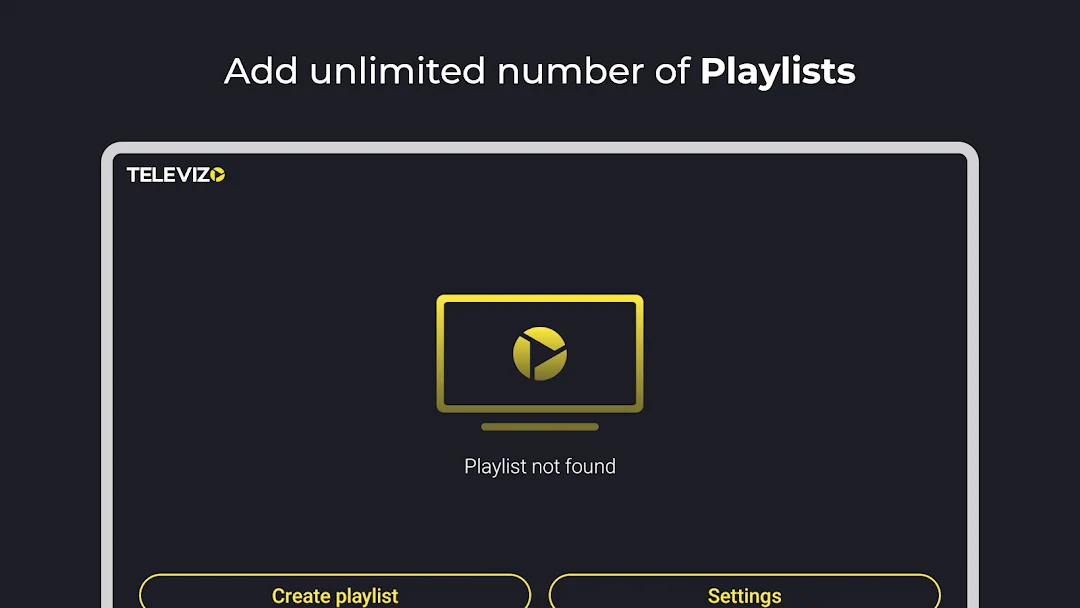
Keep the old TV available until the new one plays a channel. First sign in to the same Televizo account on the replacement device. Then restore your saved settings if you have a backup. Finally, open a channel using the source you already subscribe to. Each step checks a different part of the move.
What follows your account?
The publisher ties Premium to a Televizo account. You may have used the same email address for Google Play and Televizo, but the player still has its own sign-in. Look for the Televizo account on the old device before you start guessing at credentials. Backup and restore are listed as Premium features. Save a backup on the old device using the options shown in your version and keep it somewhere you can reach from the new device.
| What you see on the new TV | What to check first |
|---|---|
| Ads remain or backup options are unavailable | Check the Televizo account shown on both devices |
| Premium is active and the channel list is empty | Verify the restore and have the original source ready to add |
| Channels appear and one channel fails | Try a second channel from the same source before making another backup |
| The list loads and all channels fail | Confirm the source still works on the old TV with the new session closed |
Give the restore a fair test
A replacement TV is a good time to start with one result you can see. Pick a channel you watched successfully before the move and note a favourite or a parental-control setting you can check. Restore the backup on the new TV, look for that setting, then try the channel. The setting tells you whether a piece of your app configuration returned. The stream tells you whether the source can still be used on this device.
If the channels need to be added separately, use your original provider instructions. A fresh playlist URL can come with different categories and channel IDs, which may affect favourites. Preserve the old backup before saving a new one. Once the new TV can play and you can confirm its Premium status, you can remove an unused device from the Televizo account if needed.