
Choose the right AirPlay control
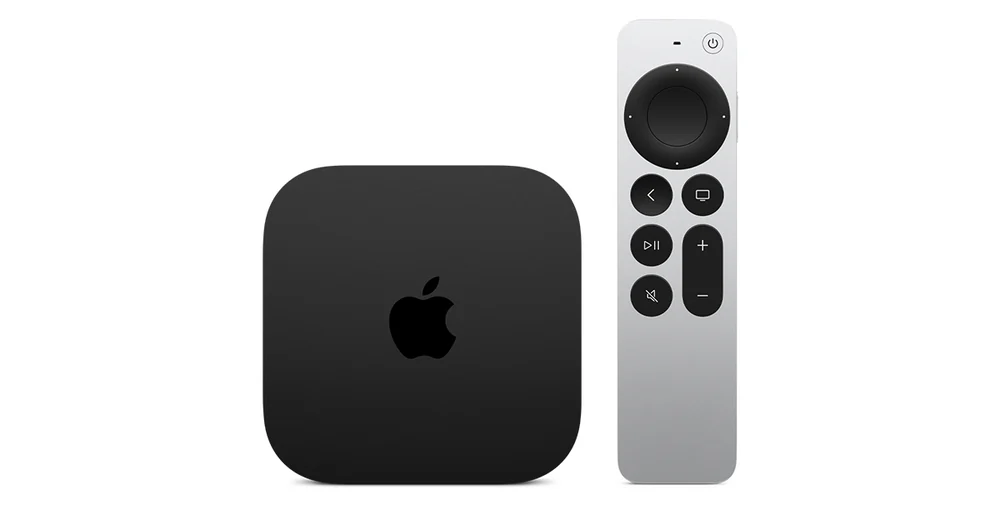
Apple documents both streaming video from an app and mirroring the entire screen from Control Center. For a compatible streaming app, use its video playback control first. For a personal clip or screen view, choose the route appropriate to what you are sharing. Connect the phone or iPad and receiver to the same local network, choose the correct output, and enter a code only on your own device when prompted.
Compare a personal clip with the service
If the receiver appears and plays a personal clip but one service app sends audio only or shows a black picture, keep the receiver and network constant. Check whether the app supports external playback of that programme. If the personal clip also fails, check the receiver’s AirPlay settings, software and network connection first.
Avoid sharing unrelated screen content
With screen mirroring, notifications and anything you open may appear on the television. Stop mirroring before opening a password manager, private message or account screen. If you need help, describe whether the failure happened with in-app video or screen mirroring. Include receiver and app names and leave out the pairing code.