Use Fire TV Network Status to find where a stream drops
Read the Stick’s own connection result, then compare two apps and a second network position at the same time of day.
 IPTVBlogs editorial desk ·
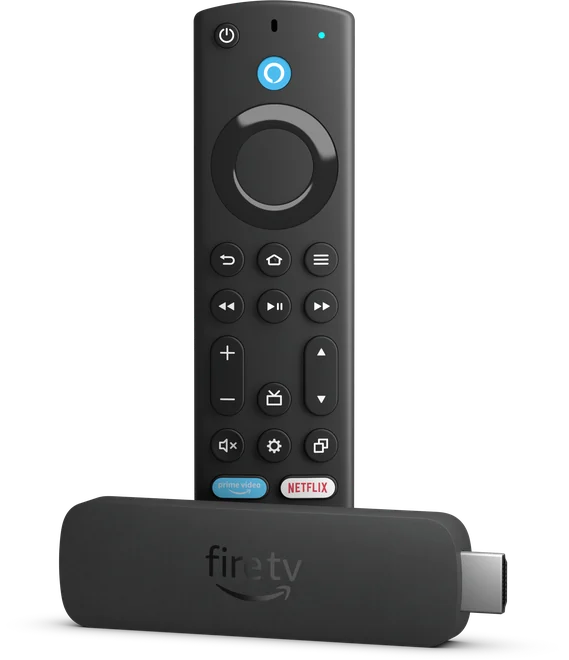
When a Fire TV Stick keeps buffering, check the connection from the Stick itself. A phone speed test from the sofa tells you about the phone’s link. The Stick sits behind a television, and its Network Status result helps identify whether it can reach the router and internet from that position.
Capture the result while the fault is happening
Open Settings → Network on the Stick. Highlight the network you are connected to and use the on-screen instruction for the Network Status tool. On versions documented by Amazon, the remote’s Play/Pause control opens it from this screen. Write down the network name privately, whether Fire TV reports a local or internet connection issue, and the time. Use any signal or advanced connection information shown on your model to compare the two playback runs.
Return to the same service and try one other authorised programme. Then run a familiar independent app on the same Stick. If both fail, compare a second device on the same home network at the same time. If only the first title fails, keep the exact channel or programme and time. A local Wi-Fi change may do little for one feed that is failing across several devices.
| Network Status and playback | What to try |
|---|---|
| Local connection fails. Multiple apps fail. | Reconnect to the correct network and compare a better Stick position |
| Local connection works. Internet check fails. | Check another device on that same network and the router’s internet status |
| Connection check passes. Independent app works. | Retry another authorised title in the affected service and record the result |
| Connection check passes. Several apps stall in the evening. | Repeat the same title on a different supported network path if available |
Compare the Stick’s position before changing several settings
A supported HDMI extension can let you move the Stick away from the rear of the TV for one test. Keep the original power arrangement and app settings in place. If your model and setup support wired Ethernet, try it as a second comparison. Give each run enough time to reproduce the problem. For a fault that appears ten minutes into a match, let each run reach the ten-minute point.
Put the Stick back in the location that gave you the stable result. Reconnect the original network if the test did not help. For support, give the Fire TV model, app version, time, and the before-and-after observations. Summarise whether the tool saw the local and internet connections. That keeps account and network details private.