Test Match Frame Rate on NVIDIA SHIELD TV Pro
Use NVIDIA’s frame-rate matching control to check regular motion judder on compatible playback, then verify the TV resumes after the mode change.
 IPTVBlogs editorial desk ·
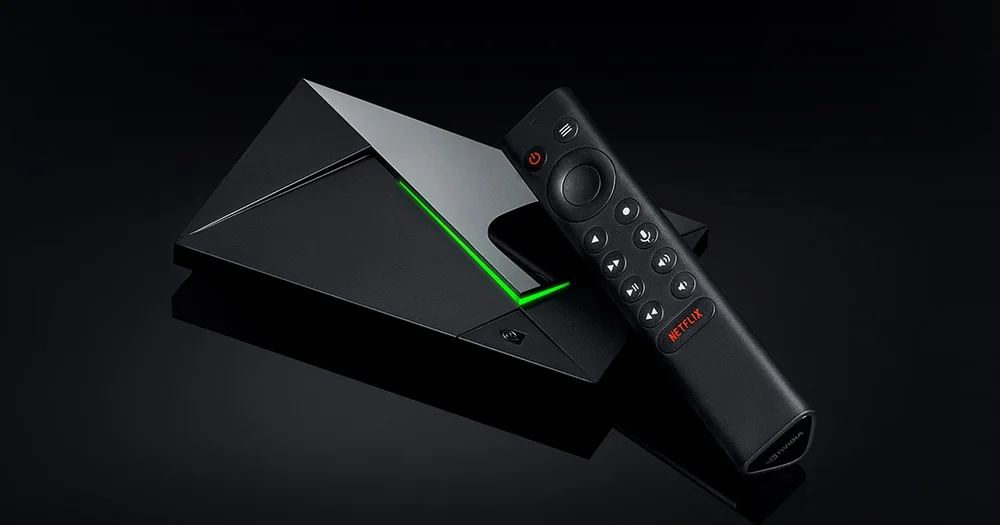
Pick a clip that makes motion differences clear
Choose a scene with a slow horizontal pan and play it using the app where you see judder. Observe whether the programme advances continuously. A steady but uneven pan is a better match-frame-rate test than a clip that visibly stops to load. Read the current output mode from the television before trying NVIDIA’s Match Frame Rate feature on the active playback session.
Watch for the HDMI mode change
On supported SHIELD software, NVIDIA labels the feature Match Frame Rate (Beta). Use the control for the clip and watch whether the TV switches modes and returns to the picture. Some apps handle the switch differently. Replay the original scene and judge the motion again. If the app closes or the picture stays black, return to the prior stable display mode and report which app and output triggered it.