Pair a replacement SHIELD TV Pro remote
Use SHIELD Accessories and verify the remote’s name and battery level before troubleshooting volume or TV power separately.
 IPTVBlogs editorial desk ·
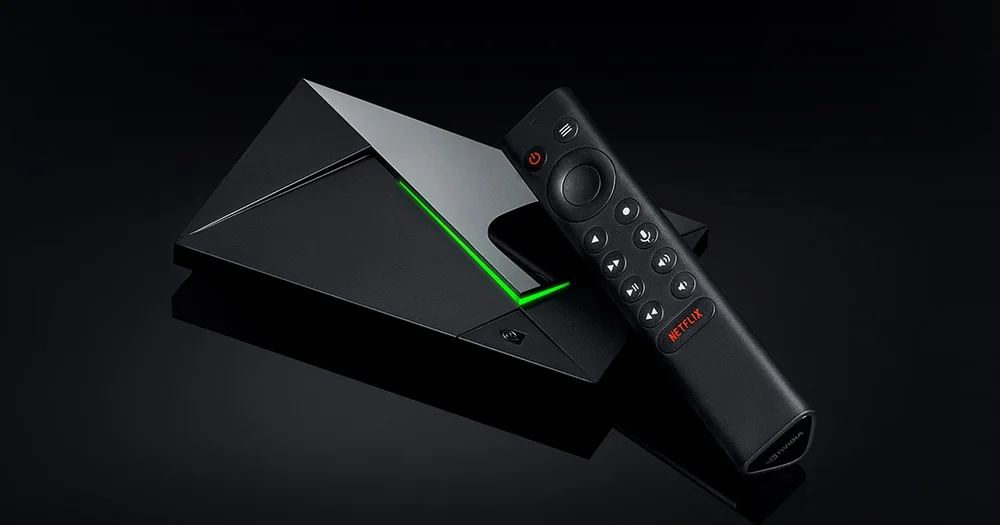
Use any controller that still reaches the menu
Bring the replacement remote near the SHIELD and check its batteries. If you have another compatible controller already working, use it to open the SHIELD Accessories settings and begin adding a remote. Follow NVIDIA’s pairing instructions for that remote generation. After connection, confirm that the device appears in the accessories list and shows the expected battery level.
Test navigation before TV controls
Move around SHIELD’s Home screen and play a familiar item. Then check volume and television power separately. Those buttons may depend on the chosen HDMI control or infrared setup even when the remote is correctly paired to SHIELD. Keep the working controller available while you adjust the volume route, and use the TV’s own remote to confirm the display is responding.