
Devices & operating systems
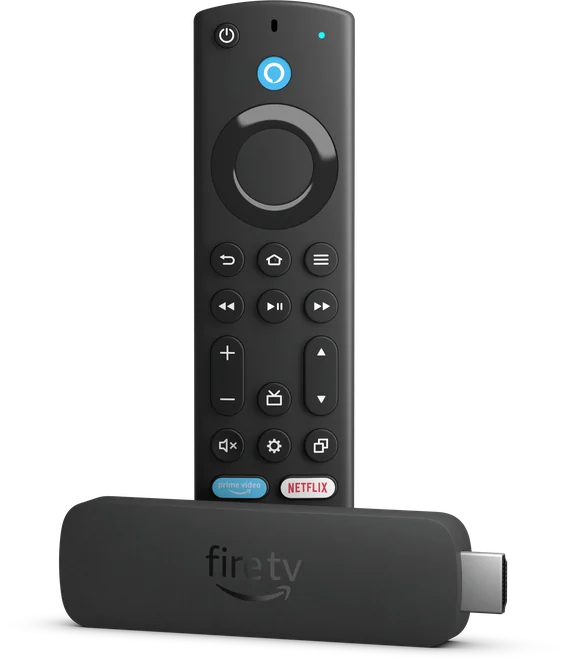
The 2023 4K Max
Check the About screen for the model before comparing app requirements. Amazon lists the second-generation 4K Max with Fire OS 8 and 16 GB of storage.
IPTV Blogs / Field desk
Which 4K Max is on this HDMI port? Check the About screen for the model before comparing app requirements. Amazon lists the second-generation 4K Max with Fire OS 8 and 16 GB of storage.
Check the About screen for the model before comparing app requirements. Amazon lists the second-generation 4K Max with Fire OS 8 and 16 GB of storage.
Open Applications, choose Manage Installed Applications, select the player and clear its cache. Start the same programme again before touching saved app data.
Put fresh batteries in the remote and pair it near the stick. Match its button layout to Amazon’s reset instructions before trying a reset sequence.
Highlight the connected network and use the remote’s Play/Pause key to open connection status. Note whether the stick reached the router and then the internet.
A boot logo puts power high on the checklist. Start with the supplied adapter and cable, then replay the same clip before changing the account or app.
Look for the full name on the About screen. Amazon lists the 4K Select with Vega OS. Check for the television edition in this device’s own store.
Search the stick’s store for the publisher’s exact title. Open the listing on the Select and check the publisher before paying for access.
Send the full device name and software version from About. Omit the serial number from a public screenshot.
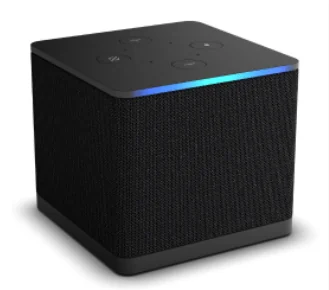
Play one title in a Cube app, then switch back to the connected source. A fault on just one path gives you a specific cable, app or input to investigate.
Connect the Cube’s Ethernet port to the router. Repeat the same stream at the usual viewing hour and compare where the first pause occurs.
Open Fire TV’s AV Sync Tuning on supported setups. Watch the test marker while listening, then check the result against a spoken sentence.

Press the button on the back of the Google TV Streamer to make its paired Voice Remote sound. Listen before moving the television or soundbar.
Try Automatic surround selection first. If you select formats manually, enable only formats the downstream receiver and television accept.
Check the active profile’s Apps only mode. Google changes Home and limits some discovery features when this mode is on.
Use the built-in Ethernet socket, then replay the same sequence on the same HDMI input. Keep the original quality setting for a fair comparison.
Open Apps on the Google TV Streamer, find the television listing and read the publisher. Try one programme with the remote once installation finishes.
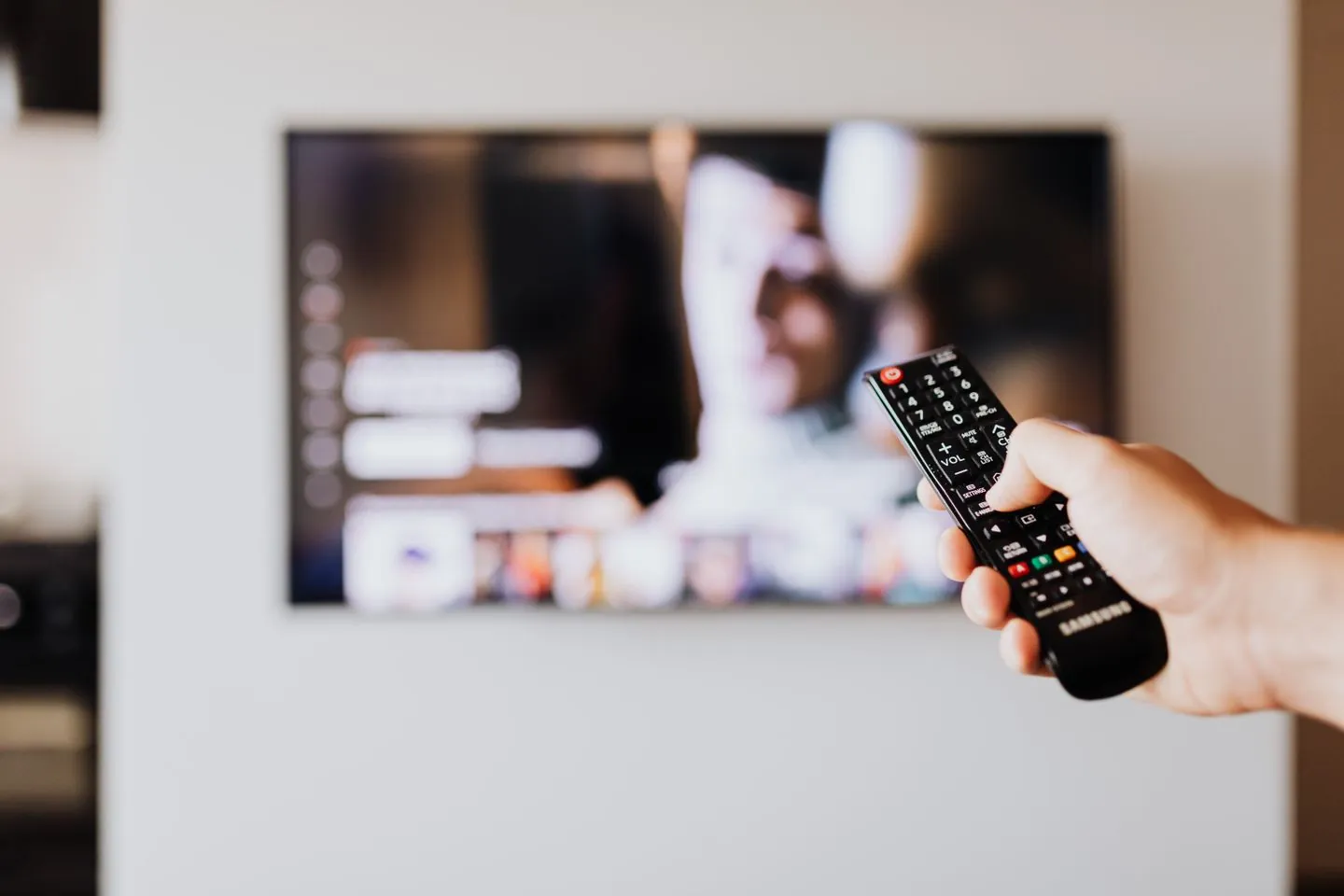
Try opening a channel, choosing captions and returning to the list with the directional pad alone. Record the first control that focus skips.
Select the affected app in Settings and choose Clear cache on supported Android TV or Google TV models. Reopen it and repeat the original test.
Note the codec and resolution of a permitted test file. Media3 can use decoders supplied by the device, so the model and encoding matter alongside the app version.
Use the app listing reachable from the television’s Apps area. Check that the opening screen, sign-in and playback controls all work by remote.
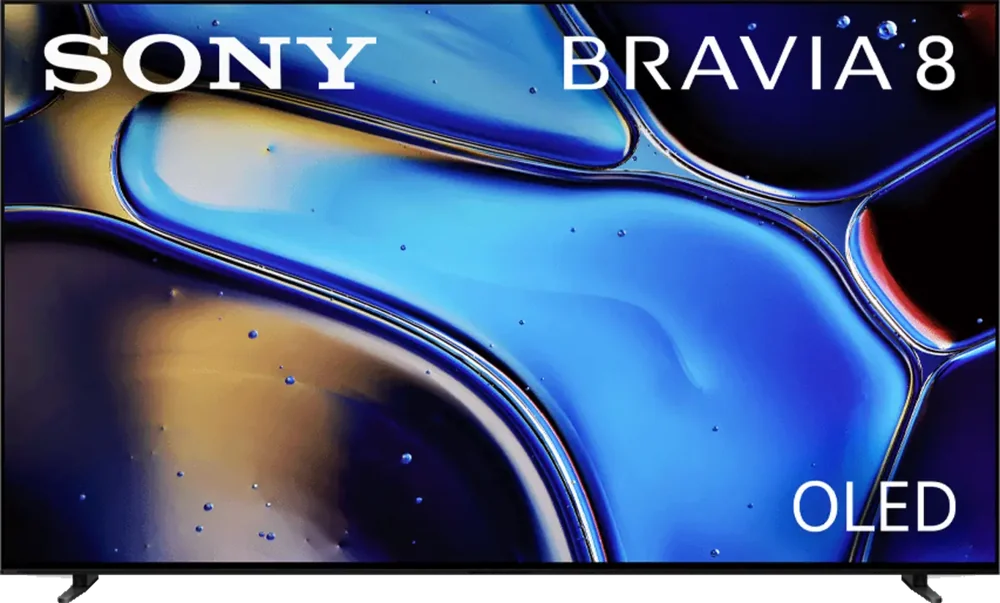
Check the signal format for the numbered HDMI input carrying the box. Select an available enhanced mode supported by the equipment at both ends.
Open the app list in Settings, select the affected title and choose Force stop where available. Reopen it and test the same screen.
Play a short clip in a built-in app and another on the HDMI device. Write down which source loses picture before adjusting an input-specific setting.
Use the full model code from the TV information screen or model label. Look up that code before following a regional BRAVIA installation guide.

On supported models, hold the remote’s power button until the television restarts. Open the same app and replay the same item before changing Smart Hub settings.
Look up the exact TV model and open the on-set Apps search. Compare the spelling and publisher with the service’s Samsung listing.
Find Input Signal Plus for the HDMI port the box uses. Leave other inputs alone while checking the handshake with the same cable.
Check the external box or its player for a captions menu. A TV app, tuner and HDMI source can expose subtitles in different places.

Use the television’s model code and services country in LG’s app lookup. Save the listing for that combination before changing a working setup.
Find Quick Start+ using the instructions for your webOS generation. Turn it off for one restart and relaunch the affected app.
Connect the soundbar to the port labelled ARC or eARC and check the TV’s Sound Out selection. Start with one familiar dialogue scene.
Note the exact app name, publisher and sign-in method privately. Confirm the same app is still listed for this model and country before removing it.

Read the operating system on the television’s information screen. Use VIDAA’s app catalogue only when that is the platform installed on this model.
The VIDAA mobile app is a companion for the television. Use the app area on the TV itself to check available playback apps.
Record the TV model, software version, store country and app name. Those details identify the catalogue entry a support team needs to check.
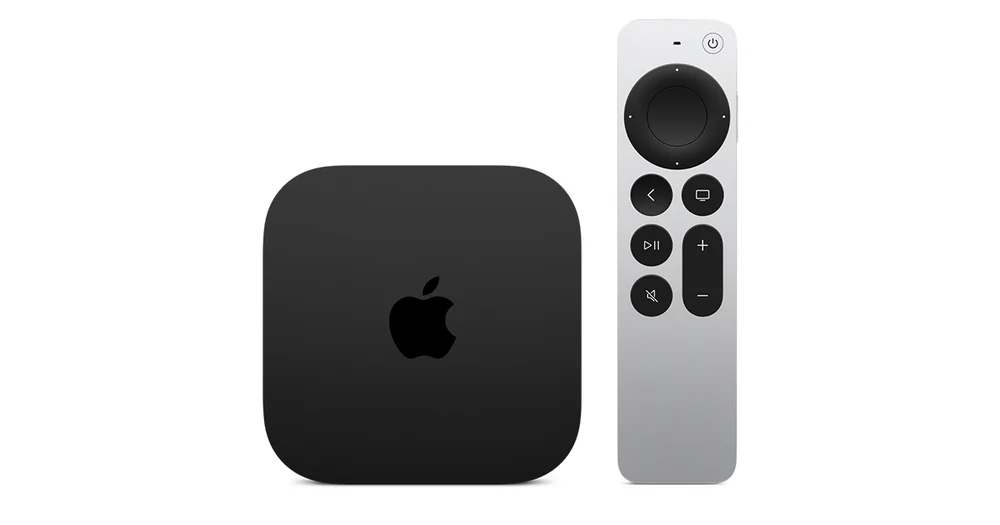
Check Match Content and replay the transition between two titles. Apple notes that the screen can go blank briefly while the television changes display format.
Choose Offload App on a supported tvOS version. Check the app is still available to download before removing its local binary.
Bring the Siri Remote close to the Apple TV. Use the pairing buttons for your remote generation and follow any on-screen instruction to place it on top.
Apple TV uses Ethernet when a cable is connected on a model with that port. Unplug it before comparing playback over Wi-Fi.
In Video and Audio, try a stereo output for the same dialogue scene. If the voice returns, trace the centre-channel path through the receiver or soundbar.
Check the Apple TV 4K generation, its connection to the TV’s ARC or eARC port and the default HomePod output. Then enable audio return on the supported setup.
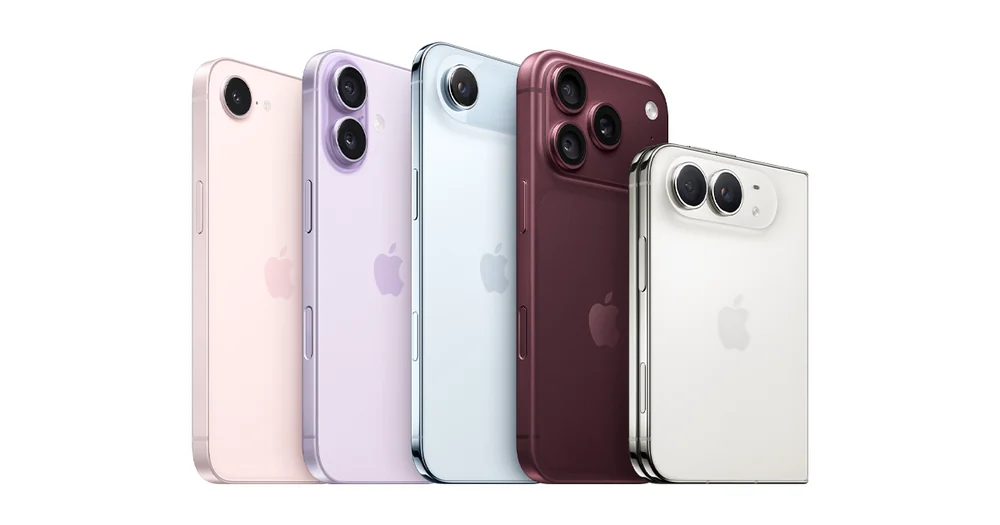
Open Cellular or Mobile Data in Settings and find the player. Check its own switch, then try a short clip within your data allowance.
Open Accessibility, then Subtitles & Captioning and Style. Select the caption track in the player and check a line against a bright scene.
In an AirPlay-enabled player, select AirPlay and choose the intended receiver. Keep the phone and receiver on the same Wi-Fi network.
Open the App Store entry from the publisher’s own site and compare the seller and app icon. Check the listing from the Apple account region you actually use.
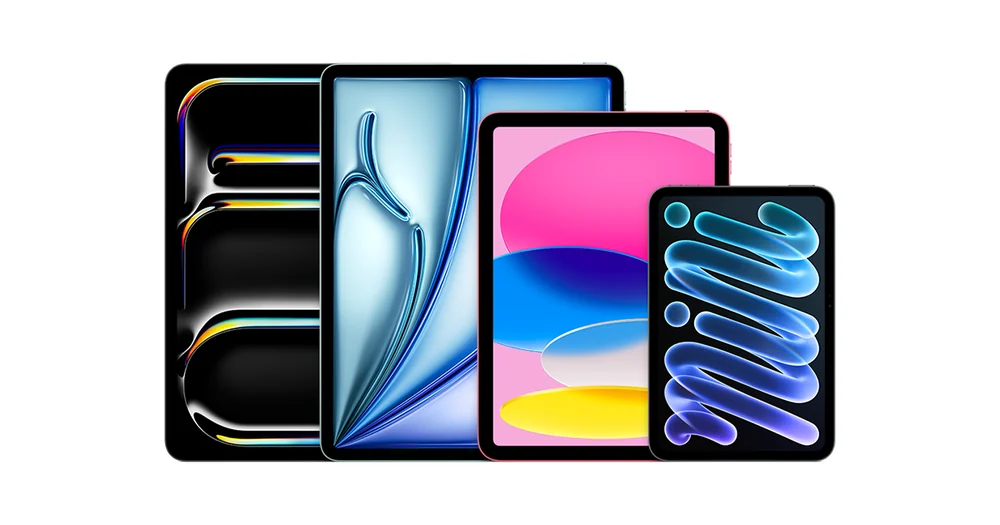
Open Control Centre and inspect Rotation Lock. Try a second app known to rotate before treating the screen as a hardware fault.
Check that the cable and any adapter support video output for your iPad and display. A charging connection alone does not establish a video link.
Open Screen Mirroring in Control Centre and select the receiver. Close unrelated apps or notifications before showing the entire display.
Read the compatibility section of the App Store listing on the iPad. Confirm the publisher and available version before installing and signing in.
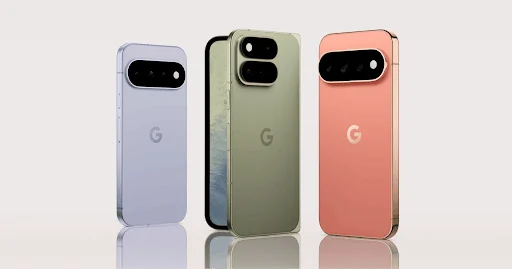
Read the device selector in Google Play before confirming the download. Search directly on the phone if you want to test the mobile version.
Use one known-good clip to confirm the player can display video. Then note the affected stream’s codec, resolution and the phone model for the publisher.
Use the Cast control inside a supported app and select the television. Check the television has begun playback before leaving the player screen.
Install the supported tablet edition and try captions, seeking and returning to the channel list in landscape. Check each target at the distance you will actually use it.

Start playback, then open Volume mixer in Sound settings. Check the player’s volume and selected output while it is actively producing sound.
Open Display settings, select the screen carrying the player and check that screen’s HDR options. Repeat the same HDR title on that display.
Read the HDR capabilities for the chosen display and check the streaming settings. Keep the app, test title and monitor the same while comparing playback.
On a supported Firefox desktop setup, check Play DRM-controlled content and the status of the Widevine module. Retry the same title in the same account.
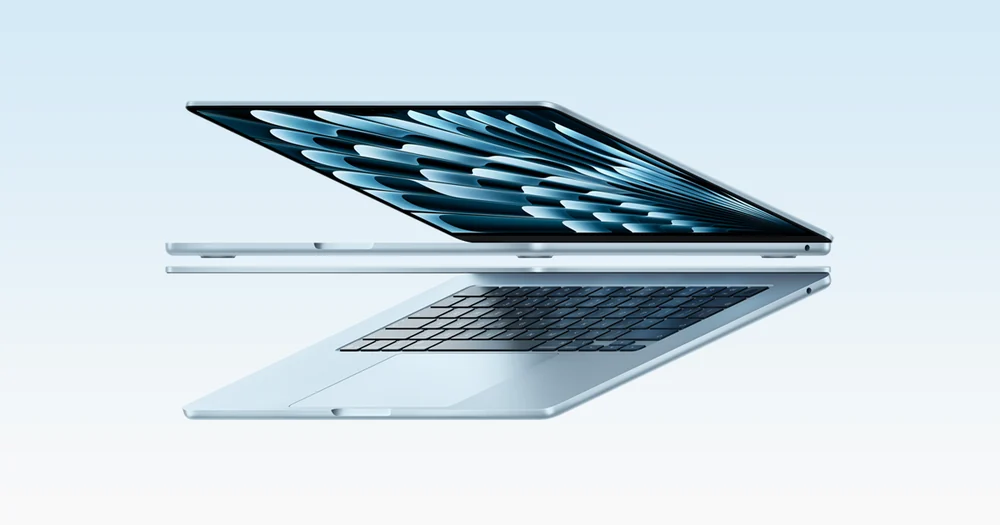
Open Sound in System Settings and inspect the Output list. Choose the connected display or receiver, then replay a quiet line of dialogue.
Match the Mac model, display, adapter and cable against Apple’s HDR guidance. Recheck High Dynamic Range for the chosen display where offered.
Use the intended display option in the Mac’s screen-mirroring control. Inspect what the television actually shows before opening any account settings.
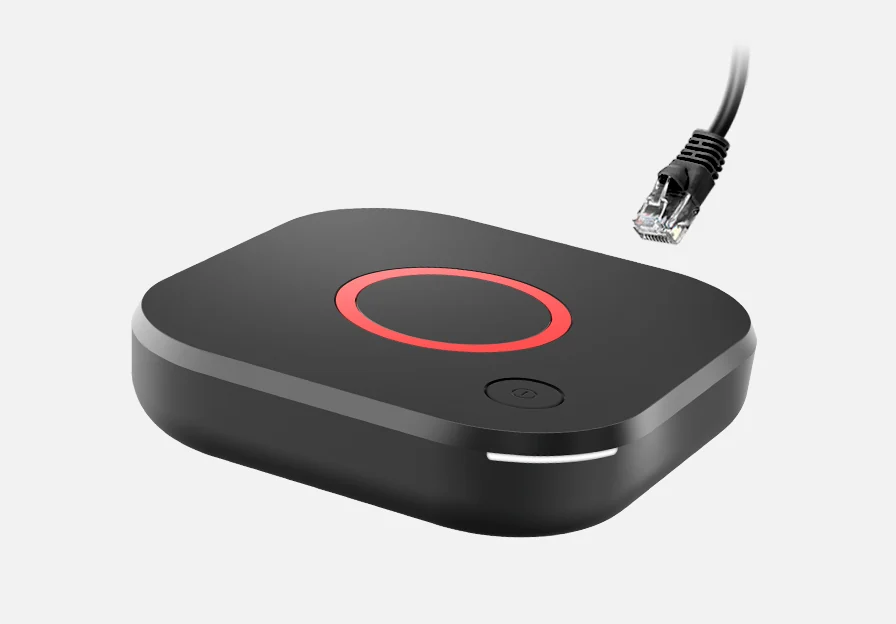
Inspect the model label for MAG544 or MAG544w3. The w3 variant adds built-in wireless networking, a distinction worth checking before diagnosing Wi-Fi.
Ask the operator to verify the new unit’s registered identifier. Compare the portal address privately with the one the service issued for this account.
Use the Ethernet socket on the MAG544 family box. If the portal loads by cable, record that result before changing the wireless setup.
Note whether the portal menu opens before playback fails. An unreachable menu and one channel with a blank picture give the operator two different starting points.

Read the MYTVOnline version first. Follow the Formuler instructions for that edition when choosing a portal, XC source or M3U playlist.
Use the backup feature for the installed MYTVOnline edition and record where the backup was written. Keep any private account details off the public screenshot.
For a MAC-ID portal on Z11 and MYTVOnline3, read the ID displayed inside the app’s connection workflow. Copy it privately into the operator’s own support channel.
Use the XC login workflow for credentials issued in that format. A full playlist URL belongs in the M3U workflow instead.
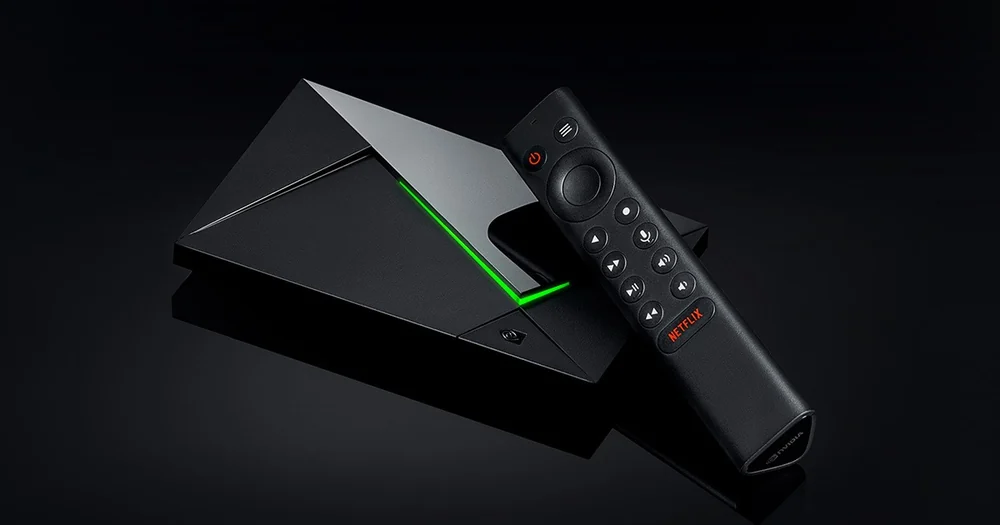
Use the supported SHIELD TV Pro’s demo on a familiar lower-resolution clip. Compare hair, text and fine edges at your normal seating distance.
Invoke Match frame rate (beta) during a supported playback session and replay the pan. A brief HDMI switch is separate from repeated stops to buffer.
Follow NVIDIA’s pairing sequence for your SHIELD remote model. Bring it close to the box and check navigation before reconnecting another accessory.
The SHIELD TV Pro includes Gigabit Ethernet. Borrow a known-working network cable and compare the same programme against the usual wireless session.
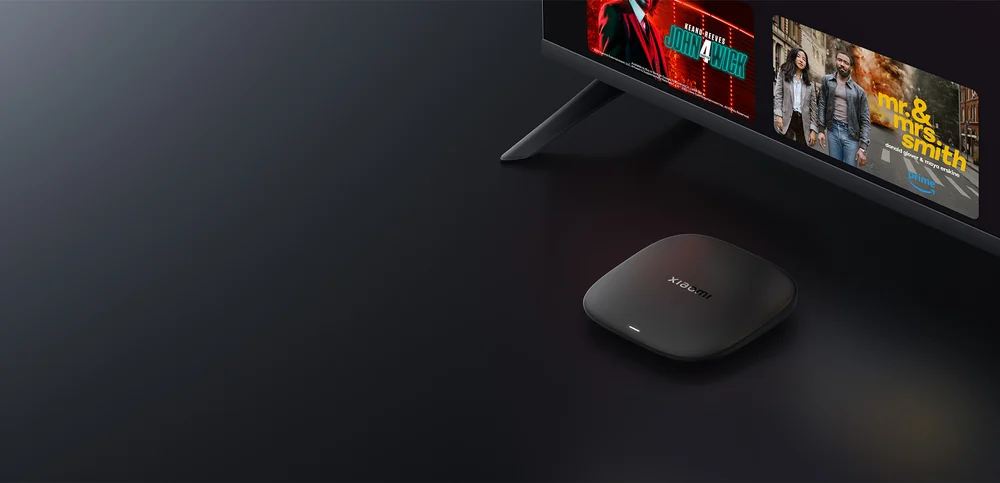
Read the model and generation on your box, then compare the ports and supplied remote with the matching Xiaomi product page. Keep first and third generations separate.
Match the retail name, remote and rear connectors with Xiaomi’s Mi Box S specifications before ordering a cable or referring to a newer TV Box guide.
Use the television Apps search and open the matching publisher’s listing. Launch the app from the box before deciding whether to buy its player licence.
Keep the title and player settings fixed, then compare playback with the box closer to the access point. Note the model and radio band when reporting the result.

Allow Local Network access for the casting app in iOS settings. Confirm the sender and receiver are on the same network before trying again.
Try another Cast-enabled app on the same network. Record whether the receiver is absent, stays at Connecting or launches the receiver and then stops.
Choose the tab source in Chrome’s Cast controls and select the receiver. Switch sources deliberately if you need the entire display.
Open the Cast control in the originating app and disconnect or stop casting. Check the television has returned to its own screen.
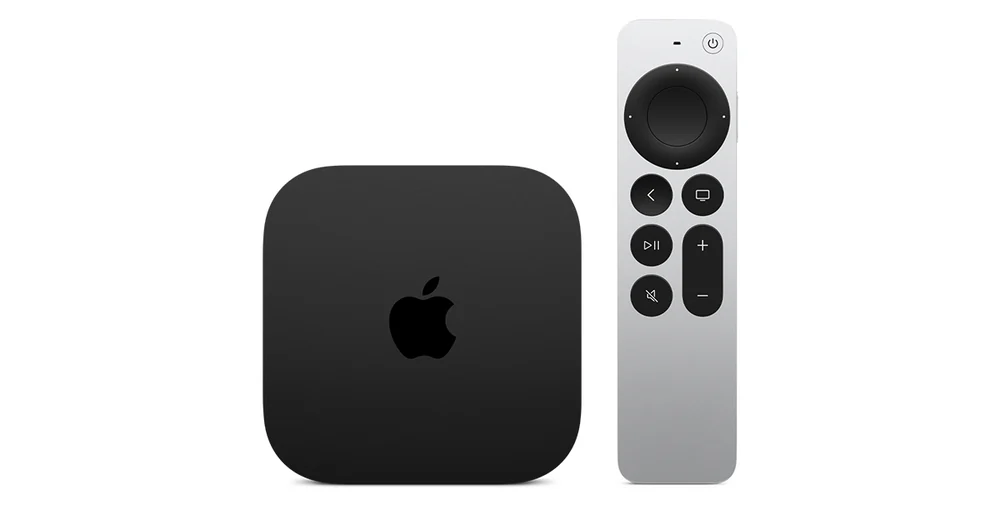
Review Allow Access in the Apple TV’s AirPlay settings. Choose the intended audience, then test from a household device that should still connect.
Send a short personal clip first, then try the service’s AirPlay control. If only one app fails, check its own AirPlay support and restrictions.
Open Screen Mirroring in Control Centre and select Stop Mirroring. Verify the television no longer follows the phone before opening messages.
Compare a manual start with an automatic one on the same page. Browsers often require user interaction before audible playback.
Check for a mixed-content message when playback starts and ask the publisher for its supported secure playback path. Keep private stream URLs out of the report.
Record the browser, version, file type and which step fails. Replay the same authorised sample and compare after a single change.
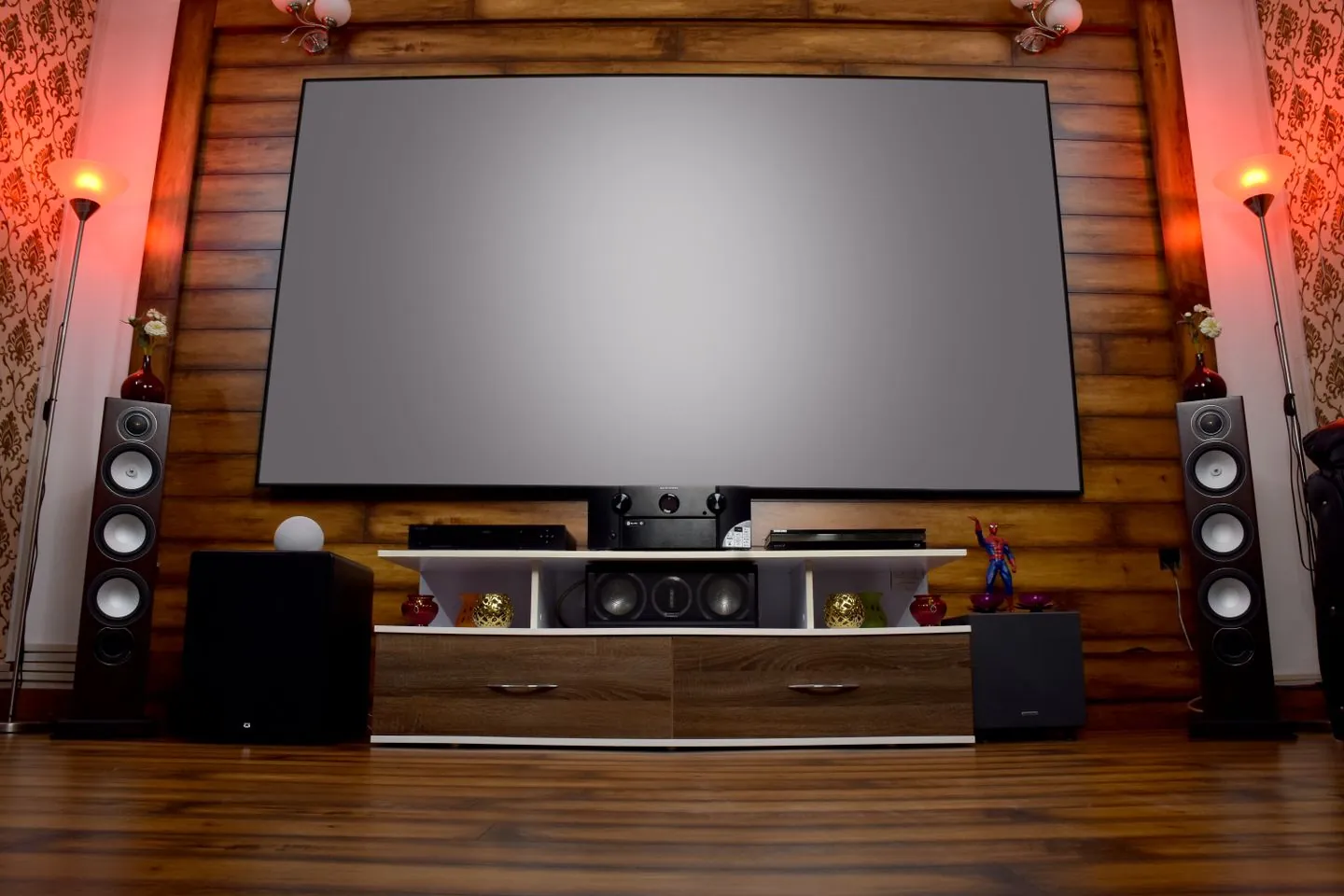
Power down the chain and reseat its HDMI connections. Try the Roku straight into the television to see whether an intermediate receiver is part of the fault.
Check that the remote supports the lost-remote feature and still has power. Trigger the finder using a supported Roku method within hearing distance.
Use Roku’s Streaming Store on the device or the matched Roku account. Check the name and publisher on the listing before confirming the installation.
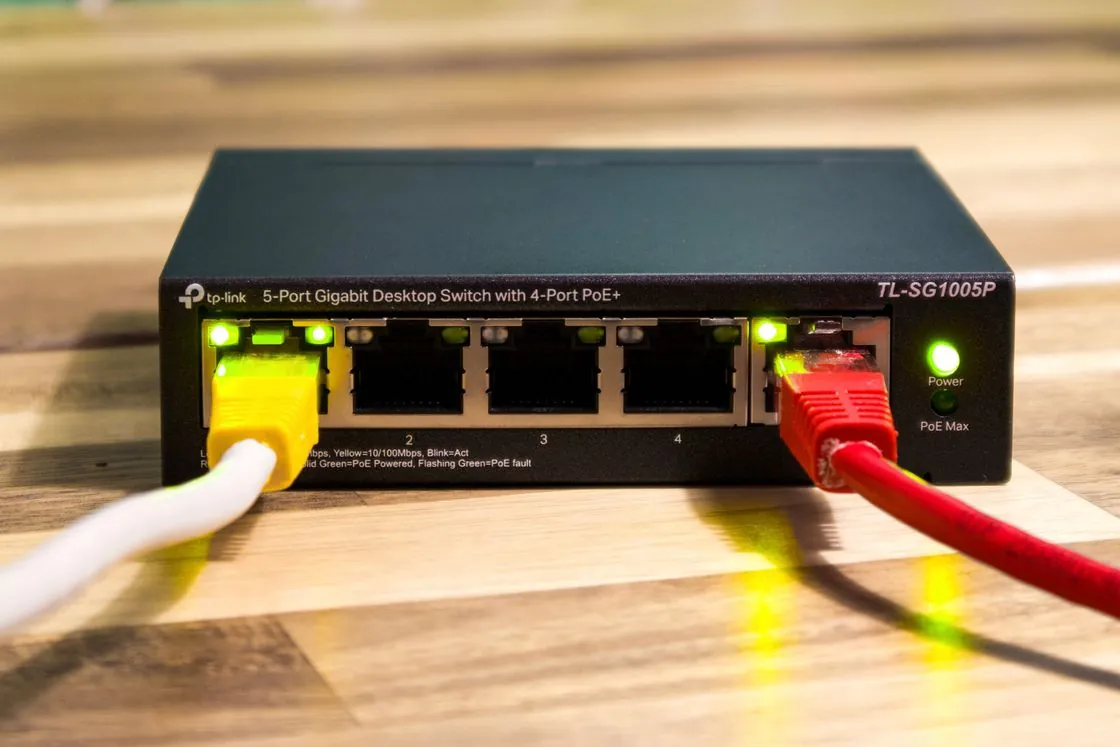
On a compatible Roku, start Hotel & Dorm Connect and follow the on-screen pairing steps on your phone or computer. Ask the hotel about device limits if sign-in keeps returning.

Read the model details and match them to Google’s specification table. The Chromecast with Google TV HD model tops out at 1080p, while the 4K edition supports 4K output.
Use the 4K model with a compatible 4K display and an appropriate HDMI port. Check the source and the app’s quality entitlement with the same title.
Find the button and status light on the back of the Chromecast. Read the instructions for the intended action before holding the button.
Compare your Voice Remote and receiver with Google’s Chromecast with Google TV hardware overview. Keep the Google TV Streamer remote’s extra functions separate.
Open the accessibility caption preferences where supported and change text size or style. Reopen the same programme and check whether the player uses those preferences.
Open the app’s Google Play page on the tablet and inspect its supported devices. Try the landscape guide, channel selection and Back controls before transferring favourites.
Try Android split screen with the two apps on a compatible tablet. If playback pauses, try another supported app before relying on that layout during a match.
Use the MAG remote to navigate a local menu first. If local navigation works, report what appears when you open the operator’s portal.
Select the attached television under Displays and inspect its resolution options. Record the original selection before testing a different size.
In the Mac’s Sound settings, select the connected television or receiver under Output. Check dialogue from the same clip after the cable change.
Select the external monitor in Windows Display settings and inspect its HDR capabilities. The built-in display and the docked screen can report different options.
Start the app, open Windows Volume mixer and inspect its output device. Match it to the headphones you are using for the test.
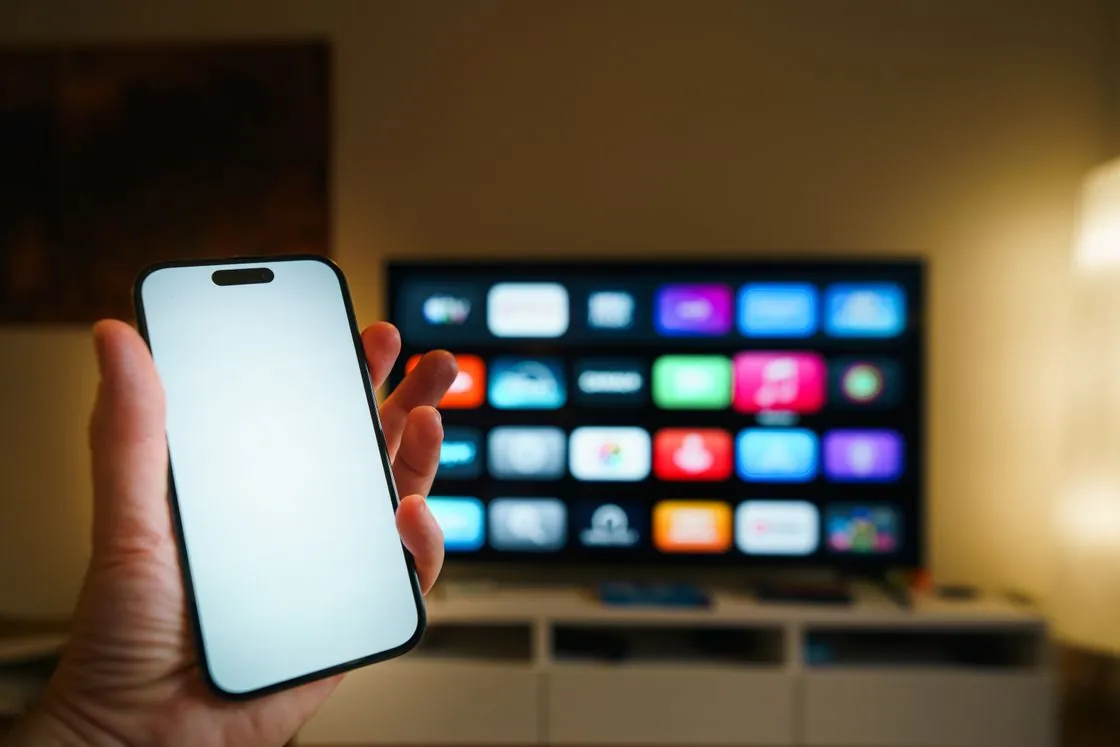
Read the generation and release year in the device information and compare them with Amazon’s Fire tablet table. Fire HD 8 editions can share a retail name.
Use Amazon’s Fire Max 11 page to match the model and generation. Record the tablet software version privately alongside the app version for support.
Xiaomi specifies 1080p output for the original Mi TV Stick. Check your model label before using instructions for the separate TV Stick 4K.
Match the physical remote to the model’s product picture. Report whether the directional pad works on the Android TV home screen before testing it in the player.
Find the Ethernet port on the Box R 4K Plus, connect it to the router and replay the same item. Record any change before changing the player or the subscription.
Use a supported personal media file on the Premier 4K Pro and play it through the same HDMI chain. Compare its picture and sound with the failing network stream.
Read the complete product name on the unit or packaging. Match KM2 PLUS Deluxe to the manufacturer’s listing before borrowing format or port specifications from a different edition.
Check whether the product name includes Max. Amazon lists the second-generation Fire TV Stick 4K with 8 GB and the second-generation 4K Max with 16 GB.